





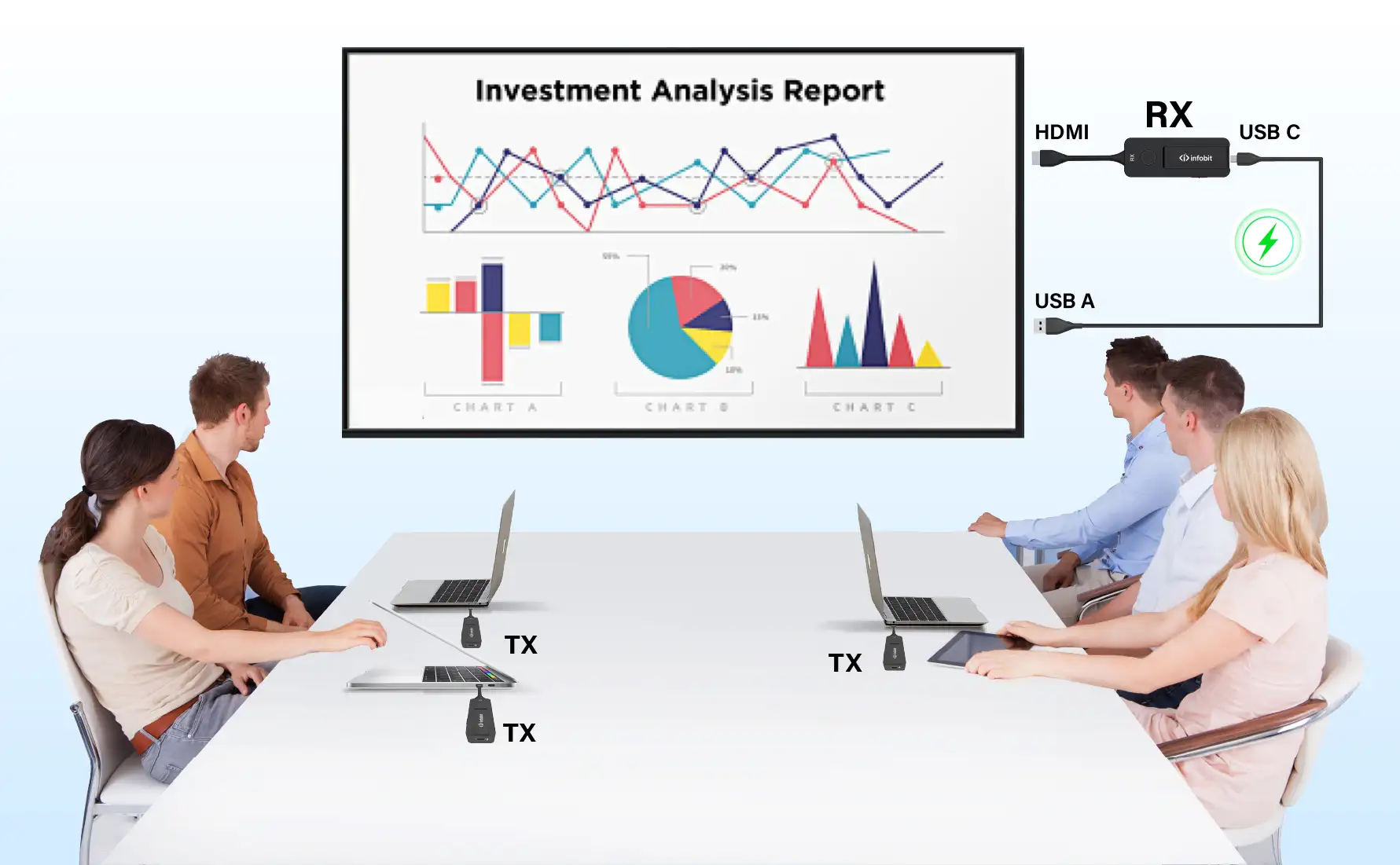
Some meeting rooms only need a visitor to put a slide deck on the screen. Others need several people sharing across two displays, or a laptop running a Teams or Zoom call through the room camera and speakerphone. Screen sharing on its own is BYOD (bring your own device). When the laptop also runs the call and borrows the room’s USB camera, microphone and speakers, it becomes BYOM (bring your own meeting). This guide covers what to check before you choose a BYOD wireless presentation system, using the INFOBIT AV iShare X400 Pro and iShare Flip as examples, so the system matches how the room will actually be used.
How Will Participants Connect and Share Content?
Start with the devices people will bring. List the laptops, tablets and phones you expect and the video ports they have, usually HDMI or USB-C, before you choose transmitters. A room used only by staff on managed company laptops is a different job from a client meeting room where every visitor brings something different.
Many guests can share without a transmitter. The iShare X100, X400 and X400 Pro all support AirPlay, Miracast and Chromecast, so Apple devices connect with AirPlay while Miracast and Chromecast cover most Windows and Android devices. Plug-in HDMI and USB-C transmitters cover everyone else, and they need no software. On the X400 Pro, native casting runs at up to 1080p30. The unit accepts up to 16 connections, but its spec sheet caps native casting at two AirPlay, two Miracast or two Chromecast sessions; transmitters and the iShareX app have no such cap.
Transmitters come in four versions: iShare HX (HDMI, 1080p), iShare CX (USB-C, 1080p), iShare HX4 (HDMI, 4K) and iShare CX4 (USB-C, 4K). They are sold separately, and the USB-C models need a laptop port with DisplayPort Alt Mode. To pair one, plug it into the X400 Pro (HDMI models into a USB-A port, USB-C models into the USB-C port), one transmitter at a time. Each transmitter belongs to one base unit and reconnects to the last unit it was paired with, so on a multi-room project, list the transmitters room by room in the equipment schedule. If the SSID or Wi-Fi channel is changed later in the Web GUI, every transmitter has to be paired again.
Wireless conferencing needs extra set-up. To use the room camera and microphone over Wi-Fi, each laptop installs the WirelessMedia virtual driver once, and the iShareX app has to be open during the call, even when the presenter is using a transmitter. Screen sharing works without the driver. On managed laptops, IT may need to approve the driver install, so sort this out before the room goes live.
What Does the Room Need to Display?
A 4K output doesn’t mean every source arrives in 4K. Input resolution, output resolution and screen layout are three separate questions. On the iShare X400 Pro, they break down like this:
|
Source or function |
X400 Pro specification |
What it means for your design |
|
Main HDMI output |
Up to 3840 × 2160 at 60 Hz |
Connect the 4K display here |
|
Secondary HDMI output |
Up to 1920 × 1080 at 60 Hz |
Only one output is 4K, so plan the second screen at 1080p |
|
AirPlay, Miracast, Chromecast and iShareX app |
Up to 1080p at 30 Hz |
Fine for slides and documents; use a 4K transmitter for detailed 4K content |
|
iShare HX4 or CX4 transmitter |
Up to 4K at 30 Hz |
Specify HX4 or CX4 where 4K sharing matters; HX and CX are 1080p |
|
Wired HDMI input |
Up to 4K at 30 Hz |
Wired sources also come in at 30 Hz, even though the main output runs at 60 Hz |
|
USB camera transmission over Wi-Fi |
Up to 1080p at 30 fps, MJPG |
Check the room camera can output 1080p30 in MJPG |
Figures from the iShare X400 Pro User Manual V1.1.
Decide what each screen is for. The X400 Pro can show up to four sources on one screen and five across both. In its 1+4 and 4+1 layouts, one display shows a single source while the other shows four. Agree which screen carries the main presentation before the room is installed. If a room shouldn’t get busier than two or three windows, the Web GUI can cap the number of split-screen windows anywhere from one to four.
Hybrid meetings have one extra limit. The X400 Pro app can capture what’s on the room screen, including annotations and the whiteboard, and share it to remote participants in the video call. That capture stops working once more than two screencasts are running, so keep the room to two shared sources while remote participants need to see the screen.
BYOM Rooms: Will Calls Run from a Room PC, a Laptop, or Both?
In a BYOM room, the camera, microphone and speakers have to follow whichever computer is running the call. The X400 Pro does this with USB device switching between a room PC on its USB-B port and a wireless laptop. It is separate from choosing whose screen is on the display, so the room instructions need to cover both.
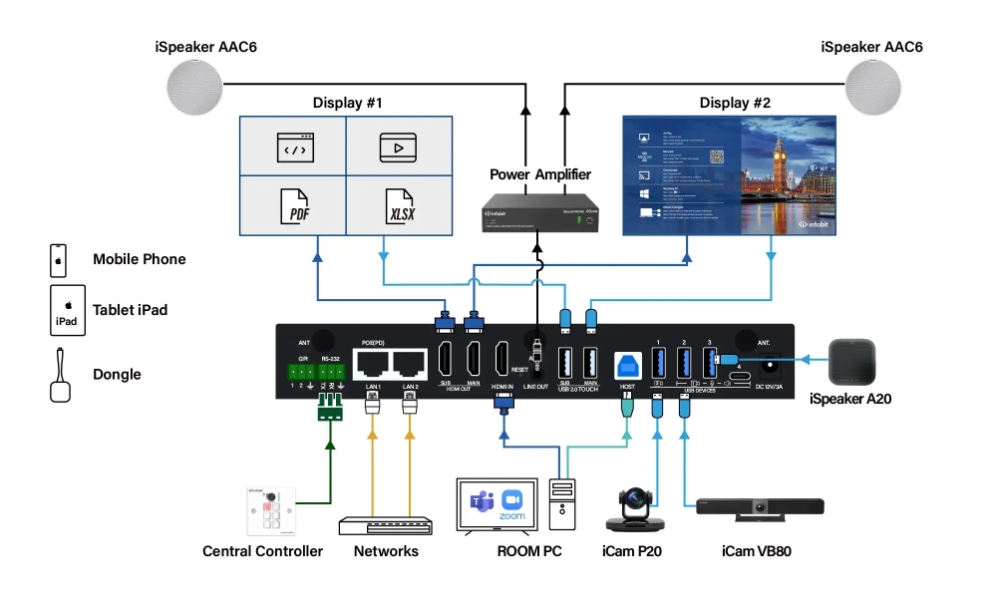
Switching is automatic by default. The USB devices stay with the room PC on USB-B. When a wireless laptop starts a conference and asks for them, they move to that laptop, then return to the room PC when the call ends. You can also force them to USB-B or Wireless from the Web GUI, the iShareX app or the USB switching button on the unit. Put this handover in the room’s user guide so people know where to look when the camera seems to be missing.
Then select the right devices in the conferencing app. With a transmitter, choose “iShareX Camera” and “iShareX Audio”. With the iShareX app, choose “Virtual Meeting Camera” and “Virtual Meeting Audio”. If the screen is shared but the call is still using the laptop’s built-in webcam or microphone, check this setting first.
Rooms with two cameras have two more rules. At least one camera must be plugged into USB port 1 on the rear panel, and switching between the cameras only works in wireless conferencing, not when the room PC has the devices over USB-B. In wireless calls, presenters switch cameras from the transmitter button, the iShareX app or the Web GUI. If the room PC needs two-camera switching as well, raise it with us at the design stage.
When Is iShare Flip the Better Fit?
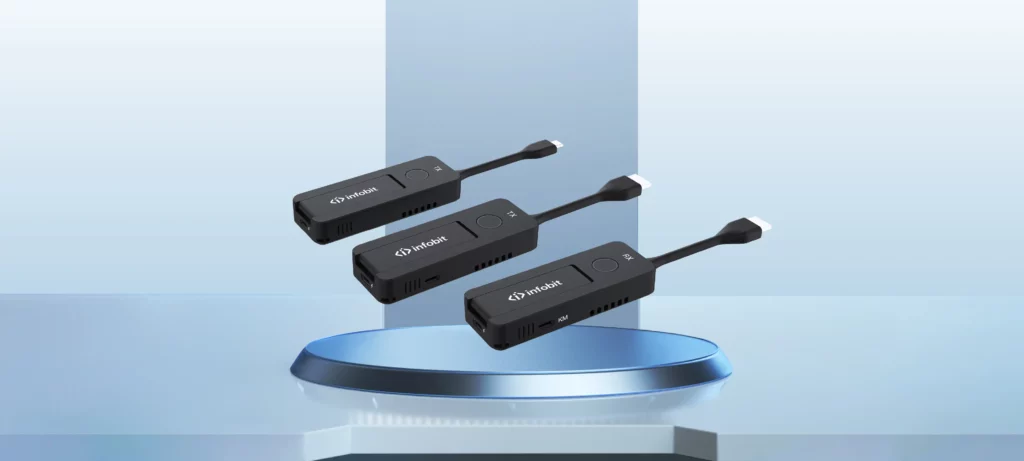
For rooms that only need to get a laptop onto a screen, iShare Flip keeps wireless display transmission simple. A transmitter plugs into the laptop’s HDMI port (Flip-HT) or USB-C port (Flip-CT, which needs DisplayPort over USB-C), and the receiver plugs into the display. It carries 4K60 video with about 100 ms latency, connects automatically on the best available Wi-Fi channel, and needs no app, driver or network set-up. One press of the transmitter button starts or stops sharing. On a touch display, the receiver’s KM port lets presenters control their laptop from the screen.
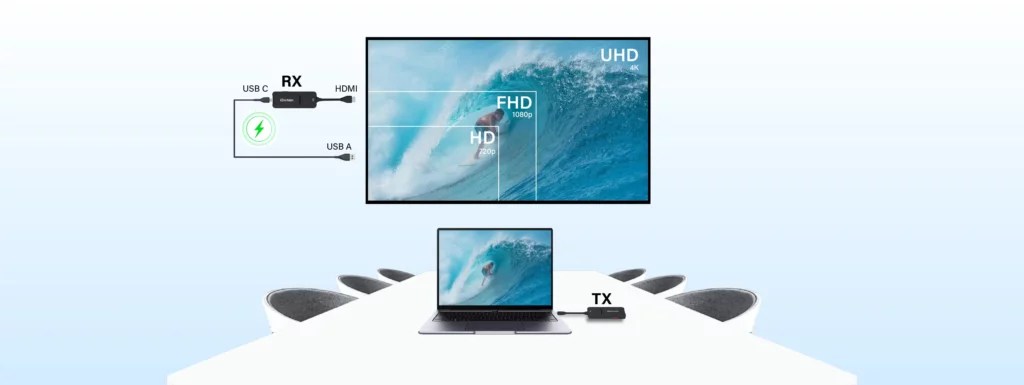
Flip has two modes, set by a switch on each transmitter and receiver. In N-to-1 mode, several transmitters share one receiver, and pressing the button on any transmitter switches the display to that laptop. In 1-to-N mode, one transmitter sends the same picture to up to four receivers, with range shortening as receivers are added. Neither mode shows several sources on screen at once, so for split-screen or dual-screen multiview, look at the X400 Pro.
So the decision is fairly simple. If people only need to put their screen on a display, Flip is the easier system to install and use. If laptops also need the room camera and microphone, if calls switch between a room PC and guest laptops, or if you need more than one source on screen, the X400 Pro is the better match.
Discuss Your Meeting Room Requirements with Us
Not sure which way your rooms fall? The INFOBIT AV team can help. Send us your project enquiry for a quotation or technical advice. A room list, the display models and the cameras and speakerphones you plan to use are enough to start. If you have a system drawing, email it to info@infobitav.com so we can review the connections.
FAQ (häufig gestellte Fragen)
Can Guests Present Without Installing Software?
Yes, for screen sharing. iShare Flip needs no software at all, and on the X400 Pro guests can use AirPlay, Miracast, Chromecast or a plug-in transmitter. Software only comes in when a guest wants to run a video call through the room camera and microphone. On the X400 Pro, that needs the iShareX app and its WirelessMedia driver on the laptop.
Can Existing USB Cameras and Speakerphones Be Used?
In most cases, yes. The X400 Pro takes compatible USB cameras, speakerphones and video bars on its three USB-A 3.0 ports and one USB-C port. Send us the exact models and we’ll check compatibility. During commissioning, the Web GUI can scan and preview connected cameras and test USB speakers and microphones. A scan briefly switches the USB devices to Wireless mode, so don’t run one while the room PC is on a call.
Can Guest and Staff Networks Be Kept Separate?
Yes. The X400 Pro has two gigabit LAN ports, and its network wizard includes set-ups that keep guests on a separate network from staff. It can also run standalone on its own built-in Wi-Fi access point. Choose the set-up with your IT team, and keep in mind that conferencing through the iShareX app needs the laptop and the X400 Pro on the same network, with internet access.
What Should a Quotation Request Include?
For each room type, tell us how many rooms there are, how many displays each has and at what resolution, which ports users’ laptops have, how many transmitters you need, and any USB cameras or speakerphones already installed. Most importantly, say whether each room needs screen sharing only, wireless conferencing, or both. A connection diagram helps if you have one, because it shows the signal paths and who supplies what.
How Are Technical Support and Warranty Returns Handled?
Warranty length and type depend on the product model, so confirm them with our sales team. For a return, get an RMA number before you ship anything. The request asks for your contact and company details, the product name and serial number, and a short description of the fault. The full steps are in our warranty and returns procedure.
