







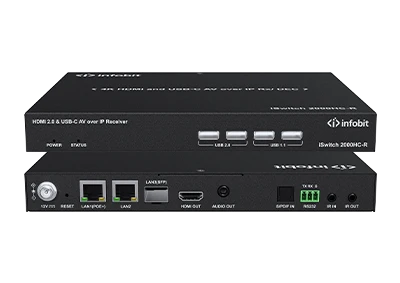
iSwitch 2000HC-R Demo Video
Check hardware intorduction of the iSwitch 2000HC-R...


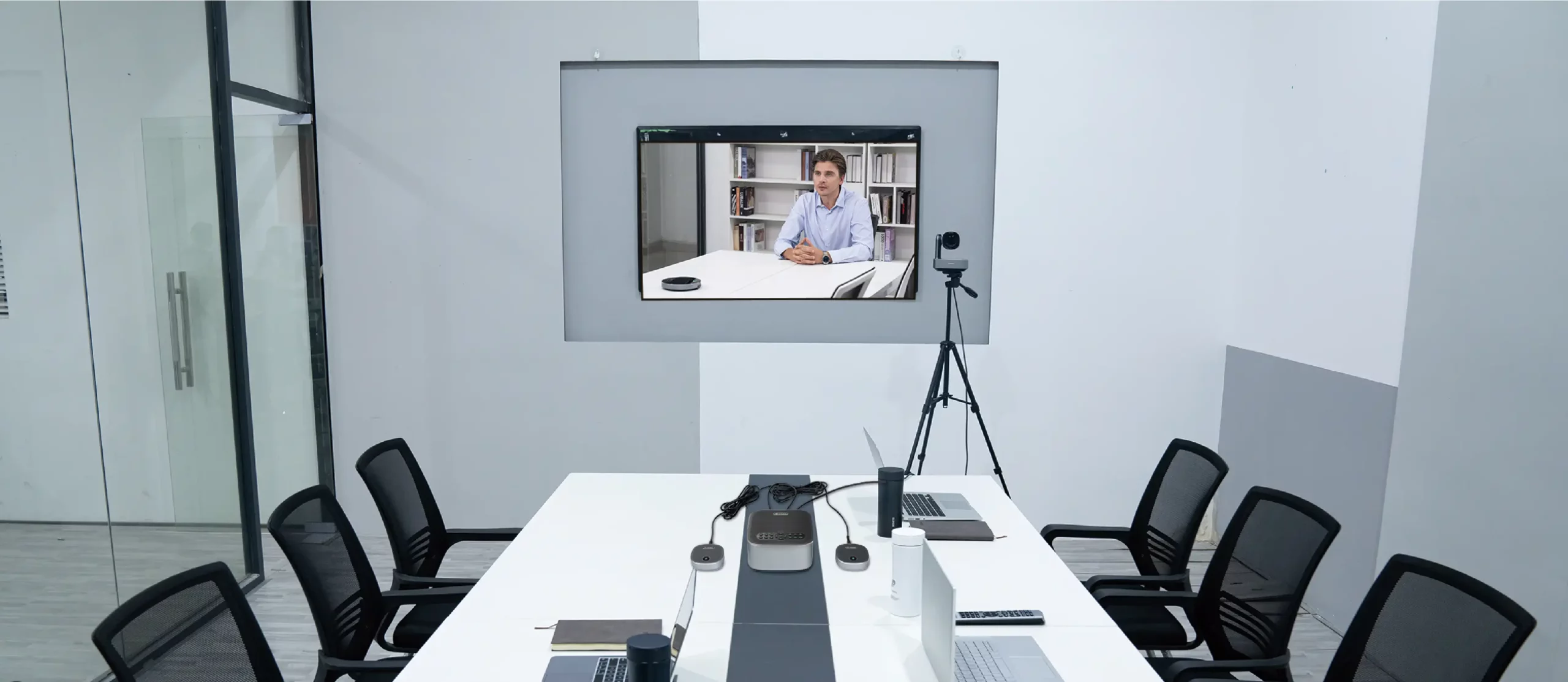
Large meeting rooms need more than a basic webcam placed beside a display. The camera must capture people seated at different distances, while the audio system must pick up voices across the table without interrupting natural discussion. At INFOBIT AV, we address these requirements with the iCam XE2, a coordinated video conferencing system combining a 4K PTZ camera, full-duplex speakerphone, two expansion microphones and a powered hub.
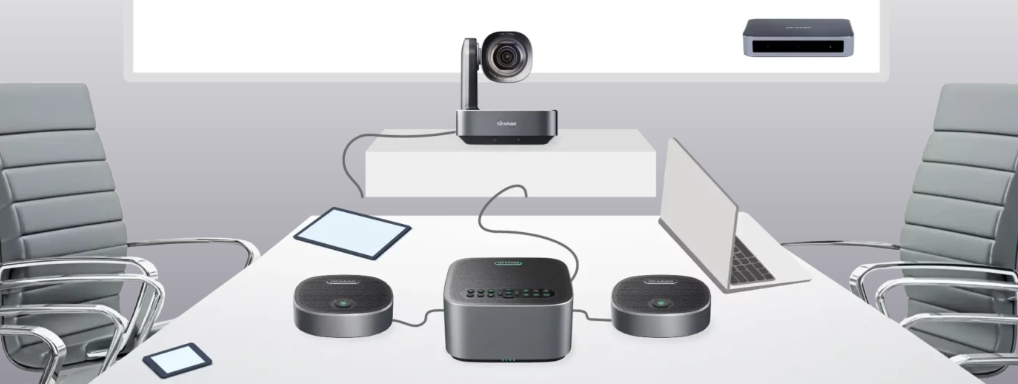
A large-room system should treat video, audio and host connectivity as one signal path. The iCam XE2 connects its PTZ camera and speakerphone to a powered hub. The hub then connects to a PC or Mac through USB-C, allowing supported conferencing software to access both the video and audio devices.
The supplied package contains the main components required for a standard installation:
The PTZ camera handles room framing, close-up views and local HDMI output. The speakerphone provides voice pickup and sound reproduction. The expansion microphones extend coverage beyond the area served by the main speakerphone. The hub brings the camera and speakerphone connections together before sending them to the host computer.
This structure makes the connection route easier to understand and test. If the computer recognizes the system but the room cannot hear remote participants, the audio path can be checked separately. If the audio works but no camera image appears, the camera, hub connection and conferencing application can be reviewed without changing the microphone layout.
Camera placement should start with the required meeting views. The camera needs an unobstructed view of the participants, but it must also be close enough to the display to maintain a natural viewing direction. A camera placed far away from the screen can make participants appear to look away from remote attendees.
The 12x optical zoom is important when participants are seated at different distances. A wide shot can show the entire table, while a closer shot can frame a speaker or presentation area without relying only on digital enlargement. Optical zoom maintains more usable detail when the camera changes from a room view to a distant subject.
Preset positions can reduce camera adjustment during meetings. The installer can prepare a wide view for general discussion, a closer view for the main seat and another position for a presentation area. Users can then recall these views through the supplied remote control or the speakerphone controls.
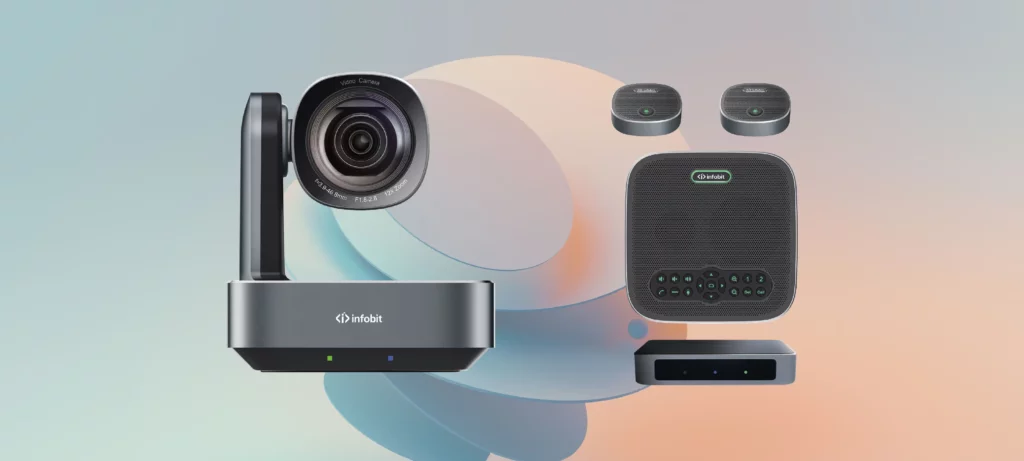
Audio coverage should follow where people actually sit. A central microphone may work for participants near the middle of the table but leave speakers at the far ends less clearly captured. Long tables therefore need pickup points distributed across the speaking area.
The main speakerphone contains eight built-in microphones and provides 360-degree voice pickup. Its specified pickup radius is approximately six metres. When the two expansion microphones are connected, the overall pickup radius can reach approximately nine metres.
|
Audio configuration |
Specified coverage |
Suitable use |
|
Main speakerphone |
6-metre pickup radius |
Central speaking area |
|
Speakerphone with two expansion microphones |
Up to 9-metre pickup radius |
Wider or longer meeting-table coverage |
|
Expansion microphone connection |
Two 3.5mm interfaces |
Distributed pickup around the table |
|
Speaker output |
5W |
Reproduces remote meeting audio |
|
Acoustic echo cancellation |
Greater than 65dB |
Limits returned speaker audio during calls |
The speakerphone should be positioned near the main discussion area rather than at the edge of the room. The two expansion microphones can then be placed closer to participants beyond the main pickup area. This arrangement is more suitable for a long conference table than placing all microphones close together.
Full-duplex operation allows participants at both locations to speak and hear sound at the same time. Acoustic echo cancellation helps prevent sound from the speaker being returned to remote participants through the microphones. The system also includes noise-reduction technology to support clearer conference audio.
Microphone placement still needs to follow the supplied cable lengths and connection method. Both expansion microphones connect to the main speakerphone through 3.5mm jacks. They are not separate USB microphones and should not be connected directly to the meeting computer.
The powered hub is the central connection point between the room devices and the host computer. It provides two DP connections for the camera and speakerphone, one USB-C connection for the computer and a power input.
The HDMI output provides an additional path from the camera to a local display. It does not replace the USB connection used by the conferencing computer. The USB-C connection allows the host computer and supported application to use the camera and speakerphone, while HDMI can send the camera image directly to a television or display.
Cable routes should be confirmed before permanent installation. The supplied USB cable is three metres long, while the two camera and speakerphone connection cables are five metres. These distances affect where the hub, computer, camera and speakerphone can be installed.
The host computer must recognize the correct video and audio devices before a meeting starts. After connecting the powered hub, open the conferencing application and select the iCam XE2 camera as the video source. Select the corresponding microphone and speakerphone for audio input and output.
A test call should confirm more than device recognition. Check the wide camera view, optical zoom, focus, pan, tilt and preset positions. Ask people at different seats to speak at normal meeting volume. Confirm that remote audio is reproduced through the speakerphone and that mute controls work as expected.
Additional equipment may be required when the meeting room uses several host computers, longer cable routes or integrated table connections.
O iBox Flex2 modular table box can provide retractable USB-C, HDMI, RJ45, USB data, charging and power connections at the conference table. Its interchangeable modules and under-table retractors help organize the connection points used by meeting participants.
O iSwitch 402UC-L can support rooms where multiple computers need access to shared conference peripherals. It provides dual USB-C inputs, dual HDMI plus USB inputs and four USB 3.2 device ports. It also supports video, audio, USB, control, Ethernet and up to 100W USB-C Power Delivery.
INFOBIT AV USB extenders can address installations where the host computer and USB devices are separated by a longer cable route. The extender model should be selected according to the required USB standard and transmission distance.
Yes. The PTZ camera provides an HDMI output for connection to a television or other compatible display. The hub’s USB-C connection is still required when a computer must access the camera and speakerphone for conferencing.
Use the expansion microphones when participants sit beyond the effective central pickup area. The main speakerphone has an approximately six-metre pickup radius, while the complete configuration can extend coverage to approximately nine metres.
A UC presentation switcher such as the iSwitch 402UC-L can connect multiple USB-C and HDMI-based host devices while providing ports for shared conference peripherals. The complete interface configuration should be confirmed before installation.
Localized product sales and technical support are available across Europe, North America, Asia Pacific and other regions through the company’s global network. Project-specific support should be confirmed with the relevant regional contact.
Provide the meeting-room dimensions, table layout, participant capacity, camera-to-computer distance, display connections and number of host computers. These details help determine whether the standard system requires additional switching, table connectivity or USB extension.
A reliable large-room installation begins with confirmed camera views, microphone coverage, cable distances, host interfaces and display requirements. We recommend testing every connection and meeting position before regular use. To configure an iCam XE2 system, add table connectivity or match an extender to your layout, contact INFOBIT AV with your room plan and connection requirements for technical support and a project quotation.
Por favor deixe seus detalhes de demanda abaixo para que possamos contactar imediatamente com vocês.
